
Using Claude to record your expenses
Want your expenses recorded without typing each one? The bank alerts and receipts are already in your inbox. This is how to have Claude check your email every morning and record each one in longbook, so it is waiting in All charges on your iPhone and Mac.
Feeling lazy to read? Ask your AI to summarise.
Read https://longbook.app/blog/using-claude-to-record-your-expenses.md and summarise it for me in 5 bullet points.Most payments leave an email behind: a bank alert, a receipt, a bill. Typing each one into an expense tracker is the chore. longbook never connects to your bank or your mailbox, so it does not read those emails itself. Claude does, through its own mail connector, and writes each expense into your longbook.
Here is the whole setup, in the order you would do it.
Step 1: Set up the daily round
You need three things in Claude: the longbook connector, a mail connector such as Gmail, and scheduled tasks. In longbook, switch on Enable longbook MCP server on the Automations screen and tick Let signed-in AIs suggest changes.
Then paste one line into Claude: “Go to longbook.app/mcp and set yourself up for a daily longbook email round, as longbook recommends.” Claude creates a scheduled task for 6 every morning, in your time zone, and runs the first round at once. The same steps, with the screens, are in Using Claude to remember your credit card payments.
If your Claude has no scheduled tasks, it says so, and you can ask it to run a round whenever you like.
Step 2: Know what Claude looks for each morning
Each round reads the last day of your mail, 36 hours to be safe, and records what it can prove.
- A bank or card debit alert is a paid charge. When it pays a commitment longbook already holds, such as rent or a subscription, it is recorded as that commitment's payment and not as a new one.
- An autopay chain (the consent, the one-time password, "deducted", "paid") is one payment, recorded from the mail that says the money left.
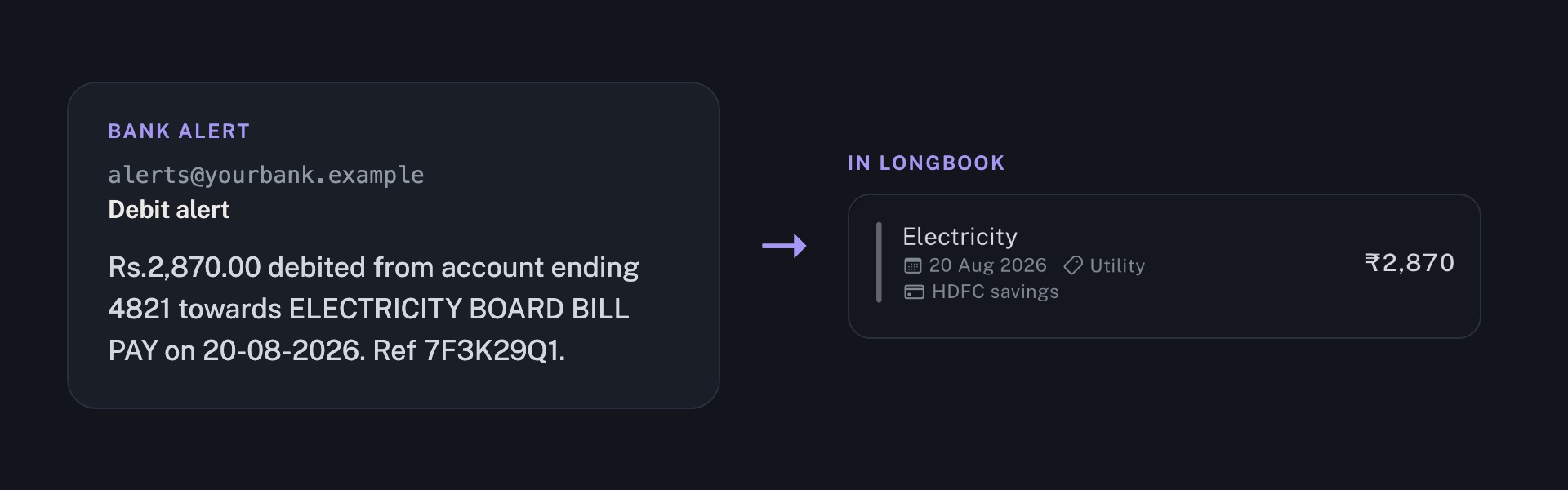
- A receipt or an invoice from a seller is usually the same money as an alert. Claude records it once, and lets the receipt give the better name, category and note. A receipt for something paid in cash is a charge of its own.
- Money in, once the bank says it was credited, is recorded and kept apart from spending.
- A card statement becomes one card bill, kept out of spending. The card post covers it.
Claude skips one-time passwords, sign-in alerts, offers, newsletters, wallet top-ups, transfers between your own accounts, investments you do not hold as a commitment, tax notices and any mail with no amount.
Step 3: See what it takes from each email
From each mail, Claude takes only what a charge needs: the amount and its currency, and the day the money moved, which is not always the day the mail arrived. It takes who the money went to as a plain name, never a UPI id or a payment address. It takes a category, and the account, matched by the last four digits the mail shows. It names a member only when your longbook already holds that person.
Claude never writes a card number, an account number, a one-time password or a tax id.
Step 4: Keep it from recording a payment twice
Before it writes, Claude reads what longbook already holds: your accounts, members, commitments and the charges of the month. A mail whose amount and day are already recorded is skipped. A mail for a commitment you already hold goes on that commitment, and does not become a second copy.
Anything that still slips through shows up in Changes, where you can undo it.
Step 5: Review the round in Changes
Every row Claude adds waits in Changes with Claude named as its writer. Keep all accepts the round as it stands and Undo all writes back the state from before it. Before that, any row can be edited or deleted. Every change your AI makes is reviewed before you keep it.
Claude's morning report says how many charges it added, which mails it skipped and why, and what needs your word. It does not cancel a commitment or decide that something repeats, and it changes a price only when the notice comes from the payee itself. It proposes the rest in the report and leaves it to you.
Step 6: Find your expenses in All charges
Open All commitments and choose Past. The screen is then titled All charges, and lists every charge made, newest first, under its month. It is the same list on Mac and on iPhone.
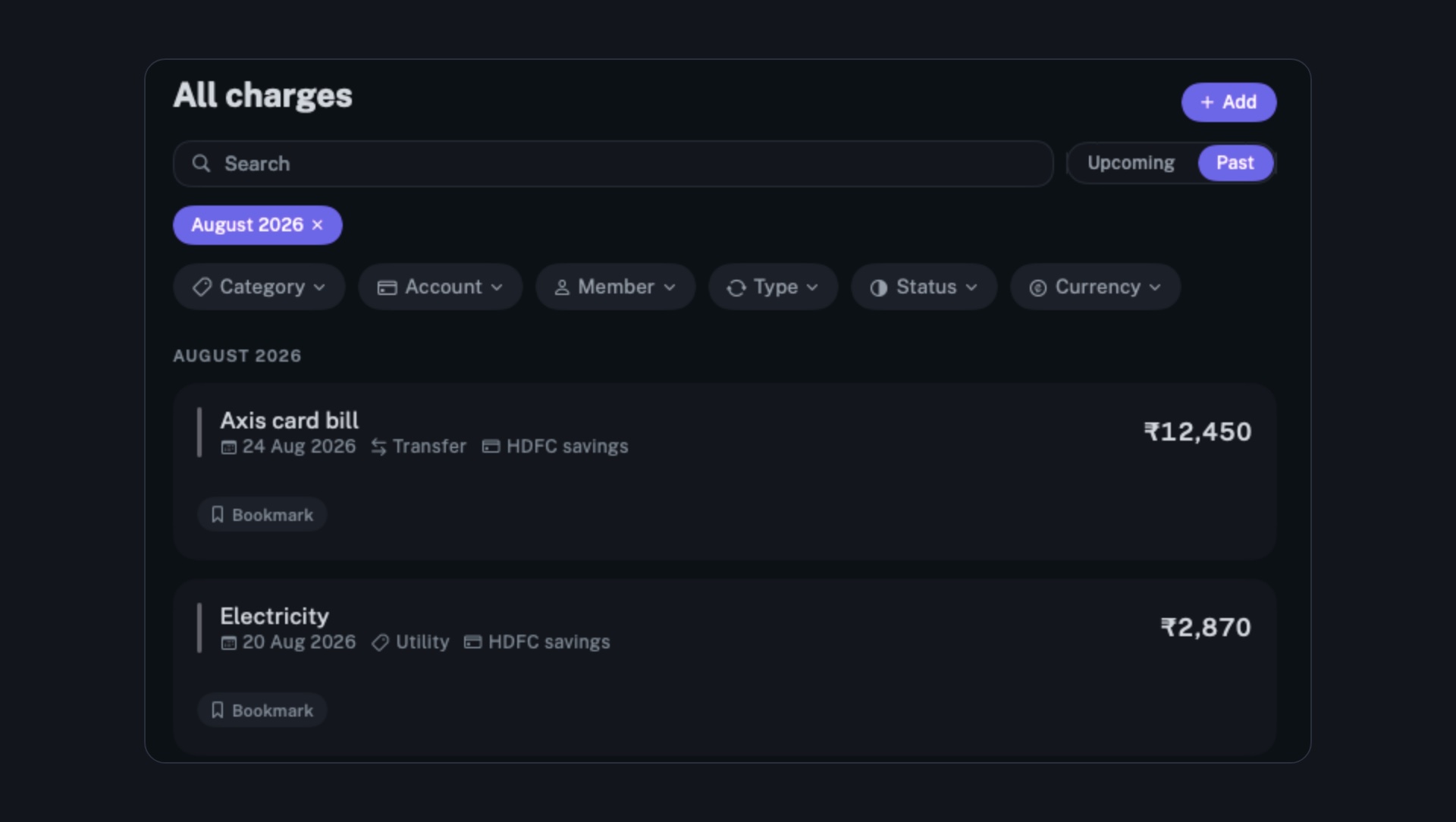
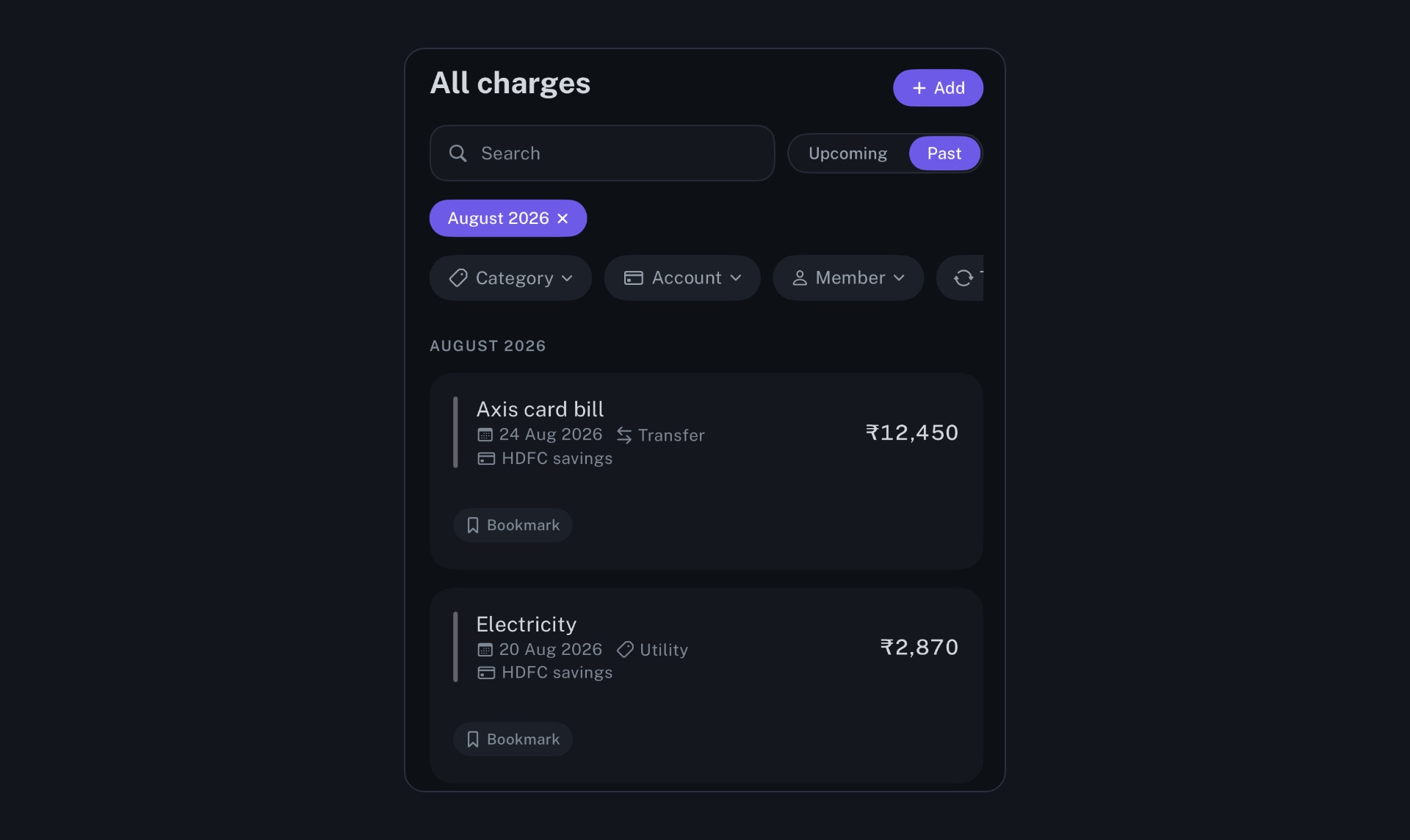
Search by name, or filter by category, account, member, type, status or currency. If Claude could not tell the category of a charge or who it was for, the row says Add category or Add member, and you fill it in. The dashboard's total for the month counts the new charges, and your reports pick them up too.
A charge appears once longbook has the row. A change Claude suggests through the hosted connector reaches your longbook the next time the app opens, so open longbook after a round.
Step 7: Catch up on what you missed
A new round only reads the last day. To fill in the rest, ask Claude once: Find expenses from my email and add them in my longbook. It reads this month's bank alerts and receipts and records each one once. Add email invoices in my longbook also picks up the month's bills and money in.
If your bank does not email alerts, a statement works too. Here is what longbook does with one.
What stays with you
Claude reads your mail through its own connector, under your agreement with Claude. longbook never connects to a mailbox and never sees your mail. Each charge keeps a reference to the email it came from, so you can find the original. The Gmail round is described in full on Log expenses from Gmail.
If something here is wrong, or you want a step explained further, write to contact@longbook.app.